

The 2nd installment of our educational blog series is here!
If you have suggestions for future blog topics, we want to hear them!
Email us at marketing@capitalizeconsulting.com with your ideas!
Updating reports can have its challenges. Sometimes, everything goes according to plan; other times, you are left scratching your head. We recently came across an interesting error while updating a report from a Cognos 10.2 to Cognos Analytics (11) related to prompting and whether a prompt is treated as required or optional.
First, a little background: In any version of Cognos, it is important to understand how prompting works across the report. Several pieces play key roles:
- Prompt object: The physical object placed on the page, to allow users to make a selection
- Parameter: The variable or placeholder that stores the selected value
- Parameterized Filter: The filter that puts the stored parameter to use
- Can be set to “single-select” or “multi-select” (using =/in)
- Usage can be set to “required”, “optional”, or “disabled”
The optional usage of the filter allows for a prompt where a user can make a selection, or simply pass by. If the prompt is not used, the filter will be ignored. This has the same effect as selecting all values. One benefit to this method is that a user has fewer clicks on the prompt page, as there is no need to ‘select all’ on each prompt as they navigate. Another, often overlooked advantage is that the background SQL that is generated by the report is actually shorter and more efficient if the prompt is set up as “optional” instead of “select all”.
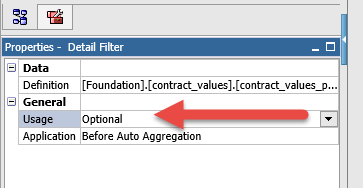
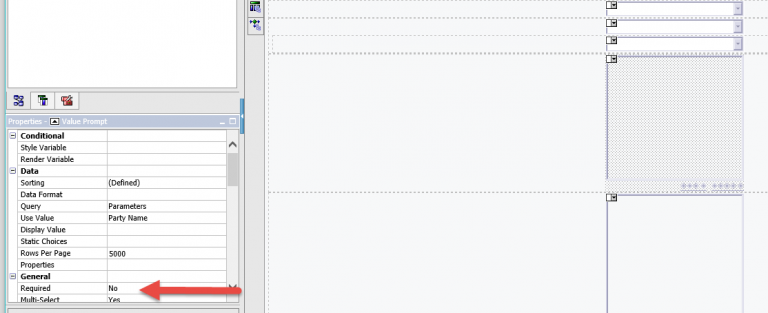
The setup of an optional prompt in Cognos 10 requires that the parameterized filter associated with a prompt be optional and that the prompt object itself has the property ‘Required’ set to ‘No’. If the filter is required, the prompt object still requires a user to provide a value, even if the prompt object itself is not set to be required. This works conversely as well, meaning that the prompt and the prompt object need to be in sync in order for the “optional” ability to be available.
A Properties pane for a parameterized filter in Cognos 10 (set to “Optional”):

A Properties pane for a prompt object in Cognos 10 (set to “Required: No”):
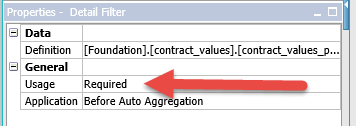
Note: if the filter is set to “Required,” even with the prompt object set to “Required: No”, the prompt page still requires a value:
The orange asterisk (adornment) denotes a required field:

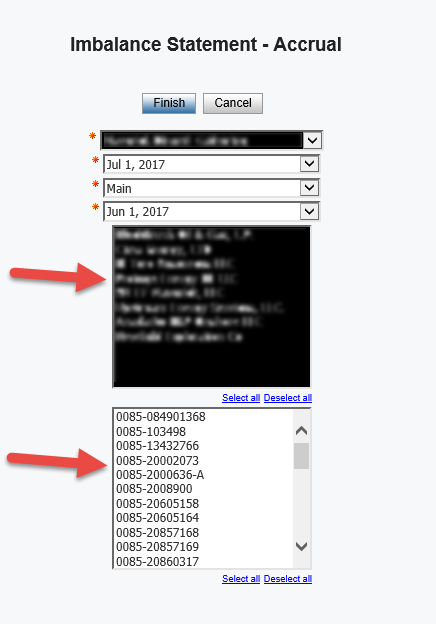
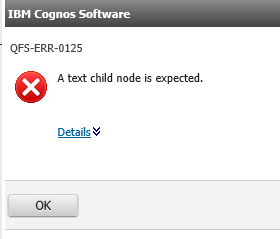
Here is where the issue arises. In Cognos Analytics (11), a prompt page will allow a user to pass over the prompt object if it is not set to required, even if the associated filter is required. This will result in a text child error for the report. The error can be especially difficult to address, as there is little information provided by the error message, and the report’s individual queries will all work, producing no errors.
Making the issue even more elusive, the prompt page requires the prompts to be answered if run from an open Report Studio instance. This means that only when the report is run from Cognos Connection, will the prompts set to ‘Required: No’ incorrectly allow you to pass no values into a required filter.
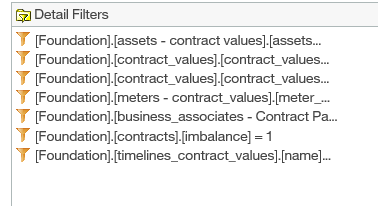
A detail filter pain in Cognos Analytics (11) where the filters are set to “Required”:
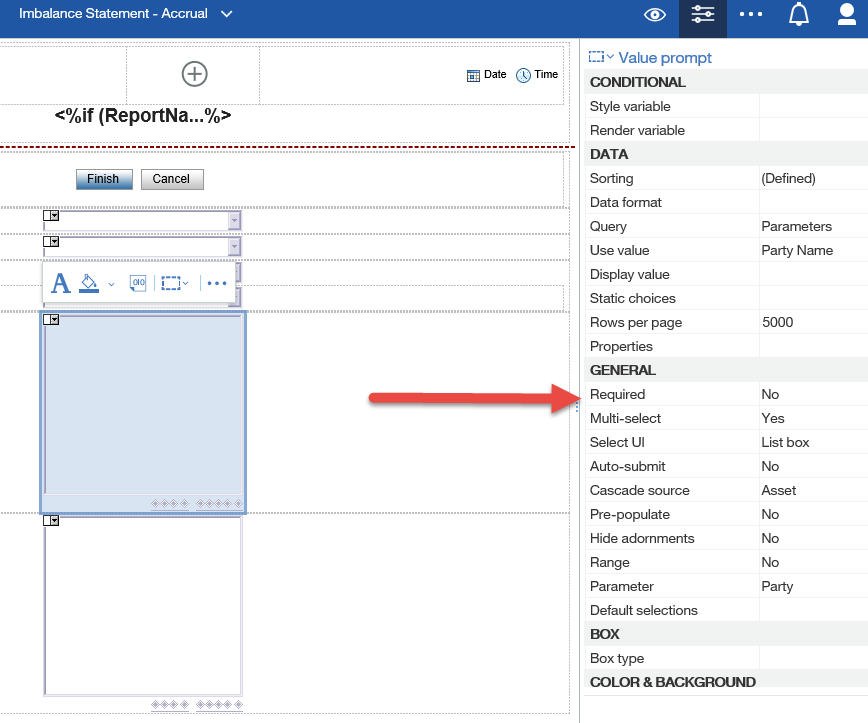
A prompt object in Cognos Analytics (11) where the Required property is set to “No”:
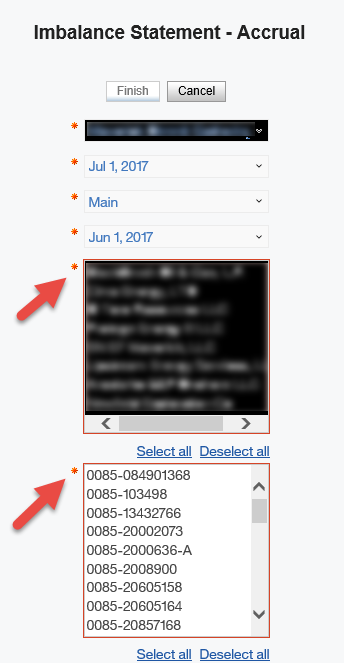
Results if run from Report Studio in Cognos Analytics. Note the required adornment:
Here is the same report run from Cognos Connection. Note that there is no required adornment, and a user can advance without making a selection, even with the filter set to “Required”:
This is the resulting error:
The solution: A user must keep their filters and prompt objects in sync; either they are both optional, or they are both required. A user cannot rely on the redundancy failsafe that was in Cognos 10. It’s a simple idea once understood, but quite elusive for troubleshooting. Let’s put this in our back pocket and continue to expand our library of tips and tricks.
If you have questions or need additional assistance, please contact us at marketing@capitalizeconsulting.com